
FROM DESKTOP
1. Go to the 3CX Web Portal:
- Click or copy this link into your browser:
- https://cadorath.3cx.ca:5001/
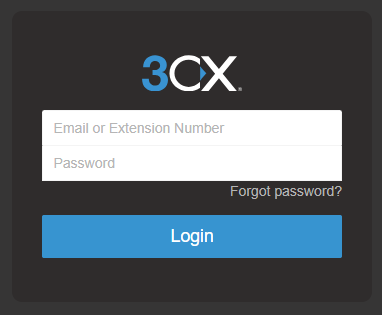
2. Sign In to 3CX:
- If you're already signed in, you'll be taken directly to the dashboard.
- If prompted to log in but you forgot your password, click "Forgot Password" and follow the instructions to reset it.
3. Get Your QR Code:
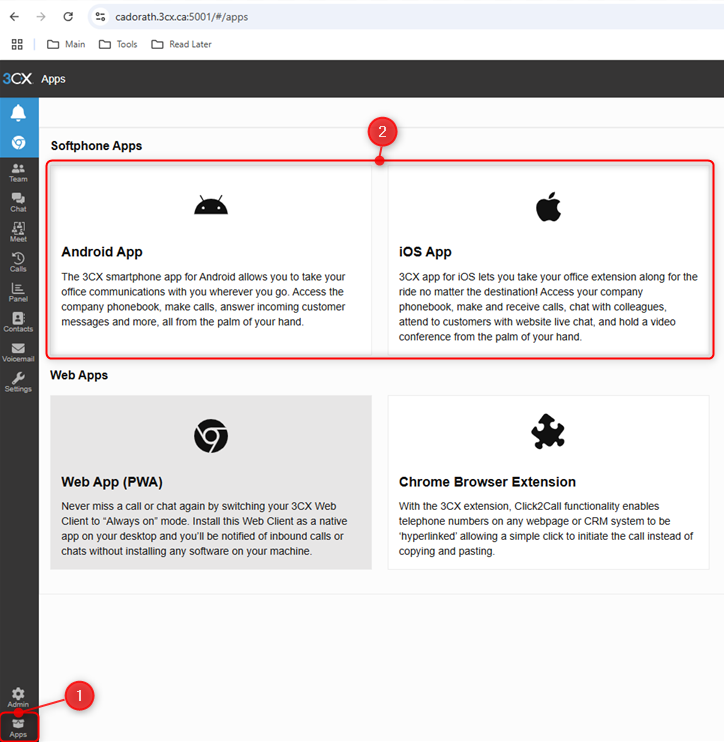
- Once signed in, click on "Apps" in the bottom right corner
- Choose Android App or iOS App depending on your phone.
- A QR Code will be displayed on screen
FROM PHONE
1. Install the 3CX App:
- Download the 3CX Phone App from the App Store (iPhone) or the Google Play Store (Android).
2. Open the App & Scan the Code:
- Open the 3CX app
- Go to Settings and select Scan QR Code
- Point your phone at the QR code displayed on your desktop in the previous steps.
3. You're In!
- The app should sign you in automatically.
- You should see the dial pad with "Ready for calls" in the top right corner.
⚠️NEED HELP?
If you're not seeing the "Ready for calls"at the end of these steps, or if you've run into any issues along the way and would like direct assistance, please contact itsupport@cadorath.com