Microsoft Co-Pilot – Quick Start Guide
Print
Created by: Oluwafemi Fowode
Modified on: Mon, 26 Jan, 2026 at 2:45 PM
What is Microsoft Co-Pilot ?
Microsoft Co-Pilot is a built-in assistant that works inside the Microsoft tools you already use, such as
Outlook, Teams, Word, Excel, and PowerPoint. It helps you save time by assisting with writing, summarizing,
organizing information, and answering questions.
Co-Pilot is safe to use because it follows the same security and privacy rules as Microsoft 365. Your work
stays within our Microsoft environment and is protected the same way as your emails and documents.
What can I use Co-Pilot for ?
You can use Co-Pilot to help with everyday work tasks, including: - Drafting or improving emails -
Summarizing long emails, chats, or documents - Creating meeting notes or action items - Helping start
documents or presentations - Rewriting text to sound clearer or more professional - Answering questions
based on your files or emails (only what you already have access to)
Think of Co-Pilot as a helpful assistant, not a replacement for your work. You are always in control of what is sent, saved, or shared.
How do I access Microsoft Co-Pilot ?
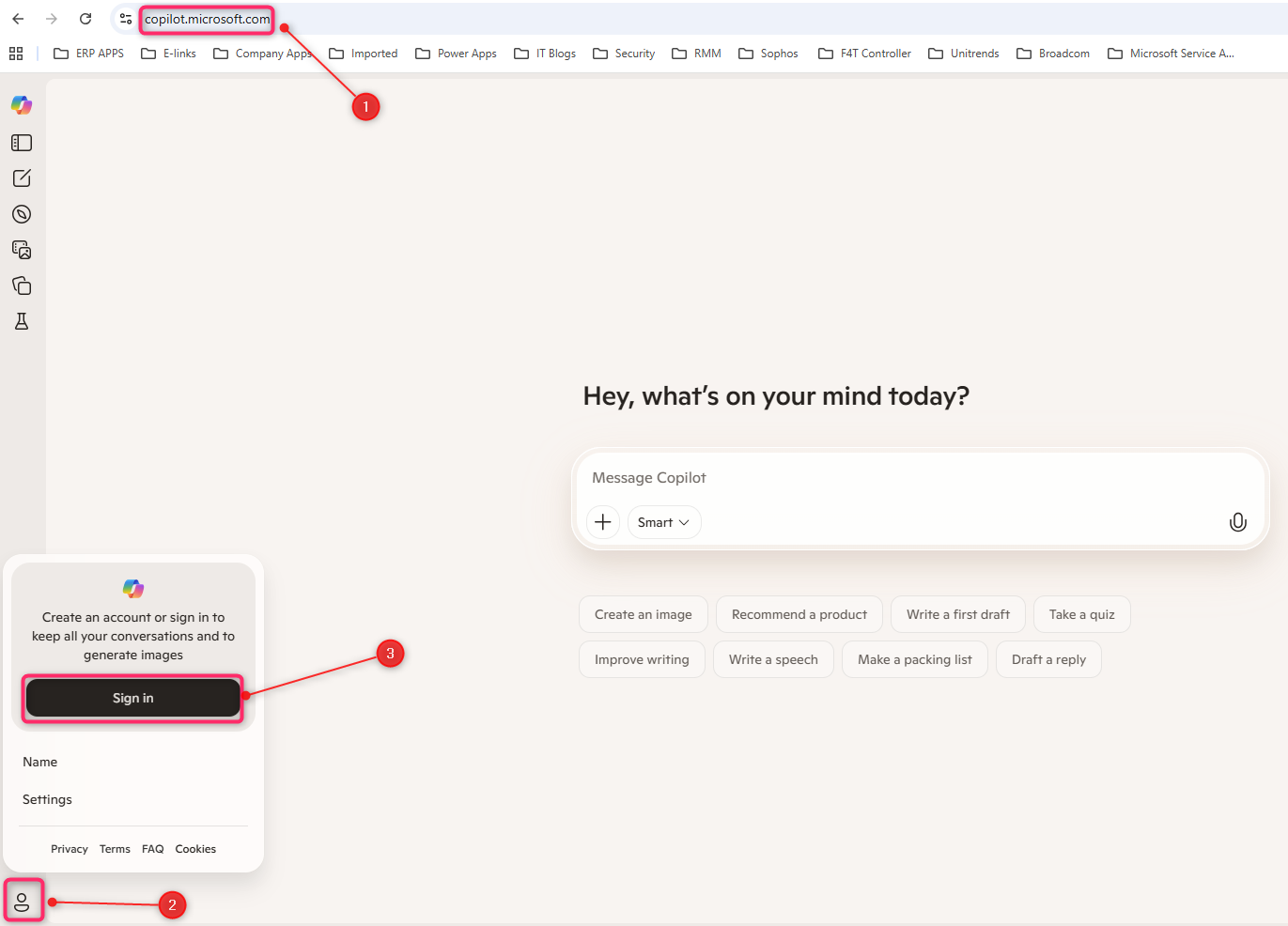
(2) Select the Profile icon, then click Sign in.
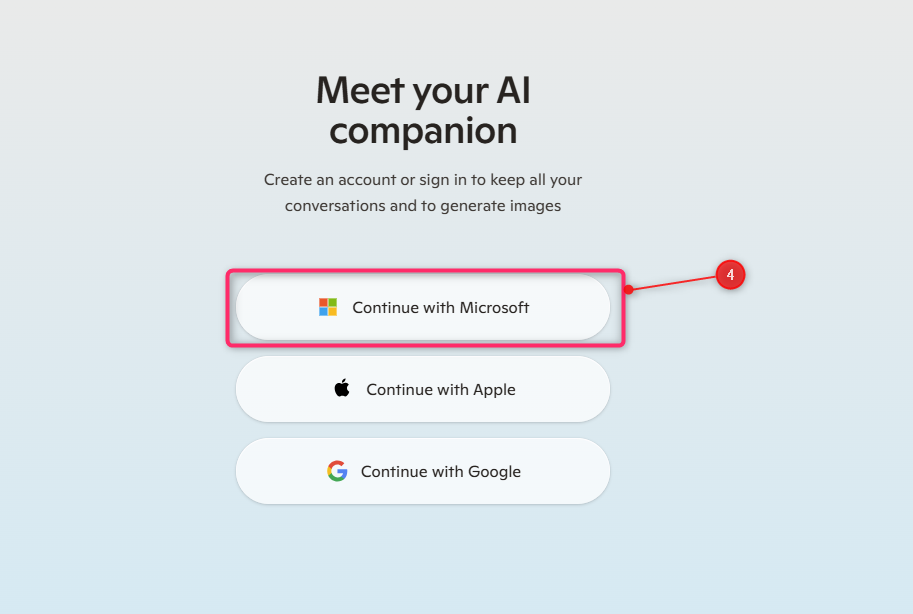
(3) Select "Continue with Microsoft".
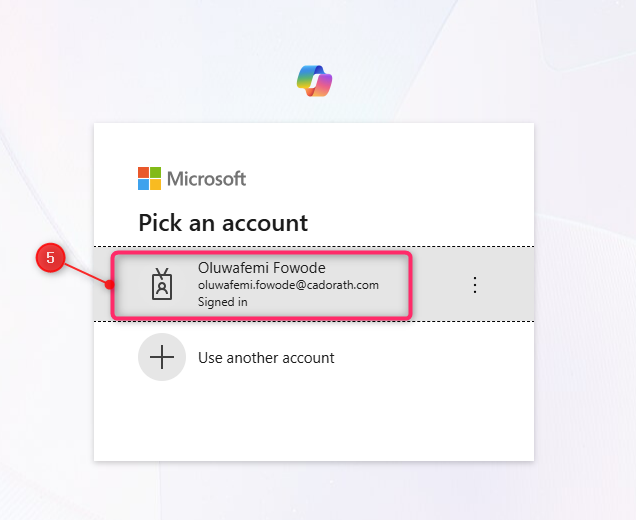
(4) Select your company email from the list or insert your company email address.
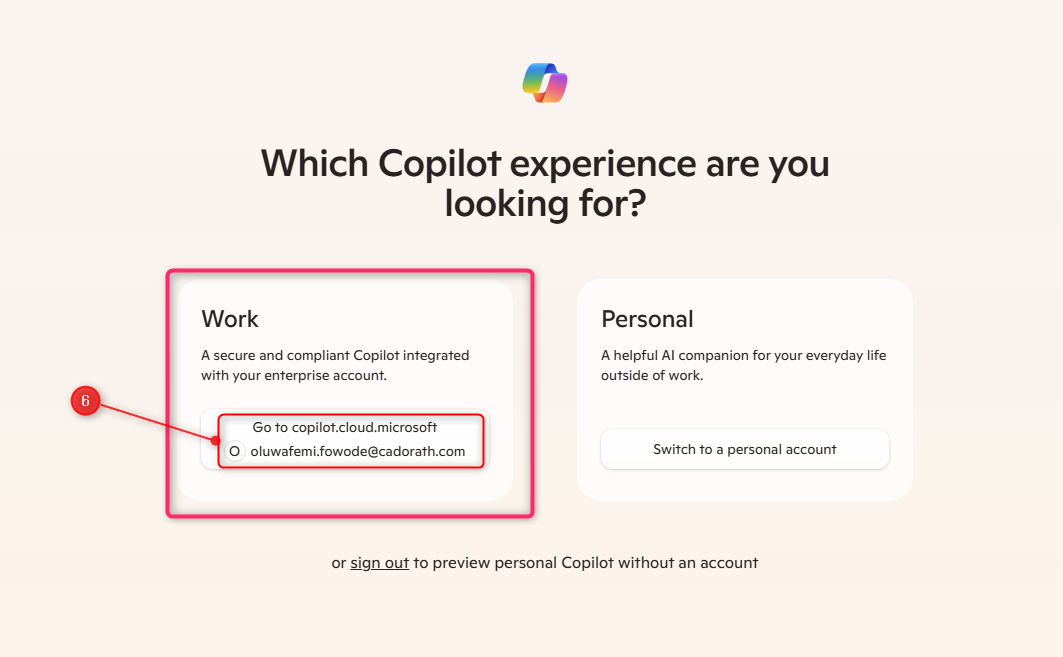
(5) Click on "Go to copilot.cloud.microsoft" under "Work".
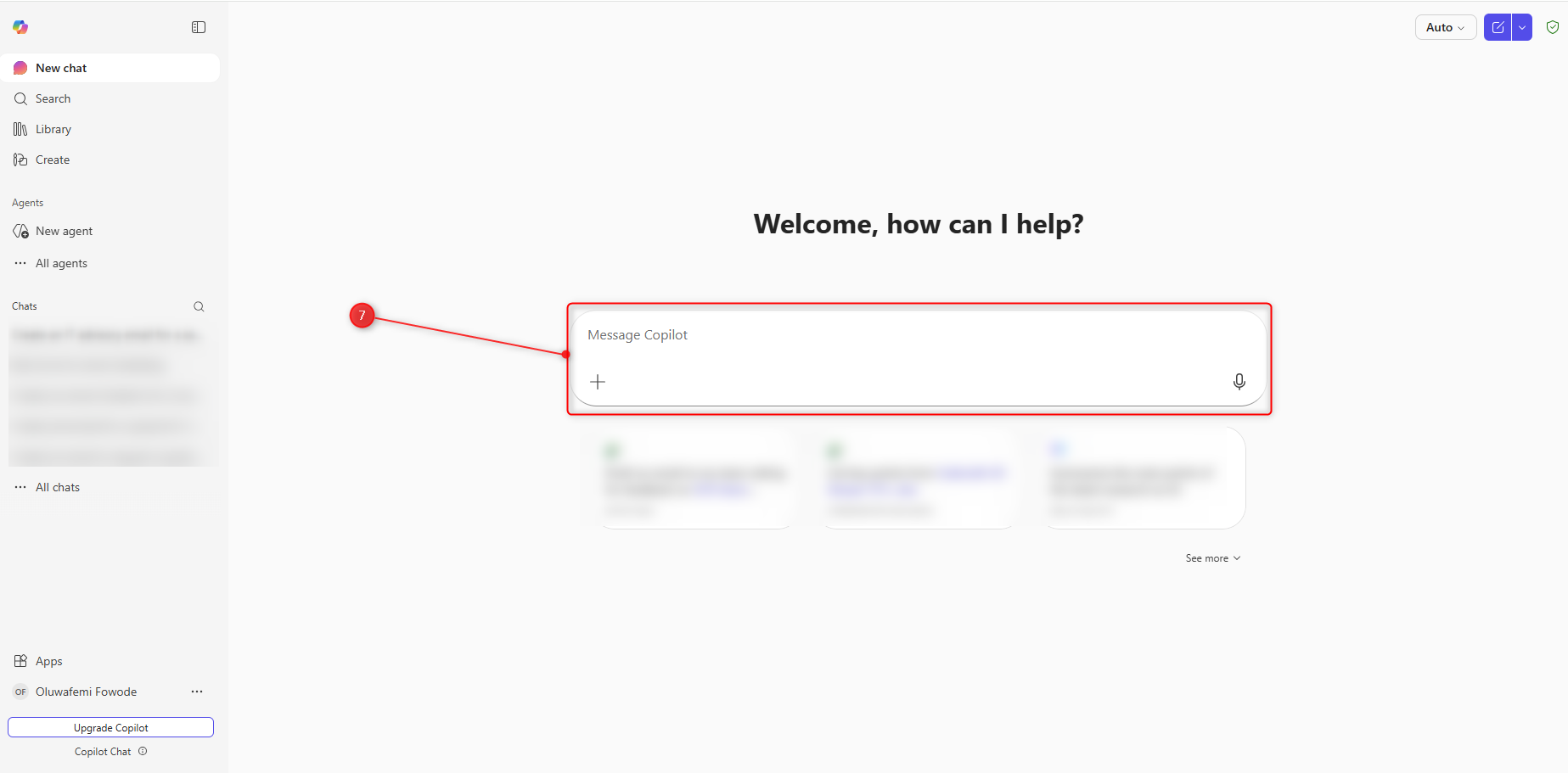
(6) You should be directed to a chat welcome page similar to the screen shot below. Locate the message input box, type your question, request or prompt into the field. Press enter or select the send icon to submit your message. Copilot will respond in the chat pane.
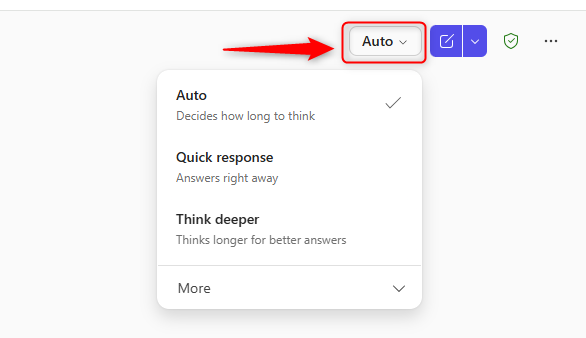
(7) This button lets you choose how quickly Copilot responds.
Auto (recommended) lets Copilot decide.
Quick response gives faster answers.
Think deeper takes more time for more detailed responses.
(8) Temporary chat: Starts a one-time conversation that isn’t saved to your chat history. Use this for quick questions or when you don’t want the conversation kept. 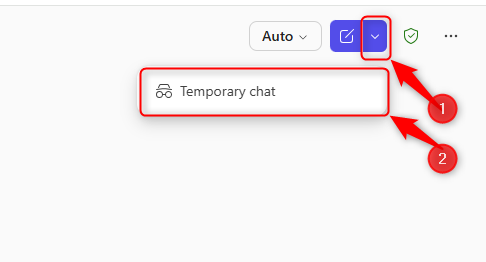
(9) Green shield icon: Indicates that Copilot is operating in a secure, protected mode and follows your organization’s security and privacy policies. 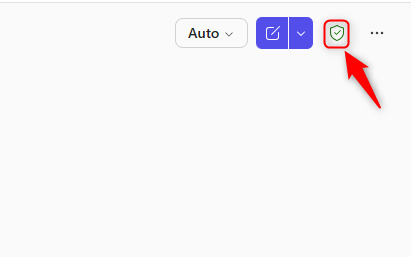
Copilot is available across Microsoft 365 (O365) applications, including the following:
| Microsoft Outlook | 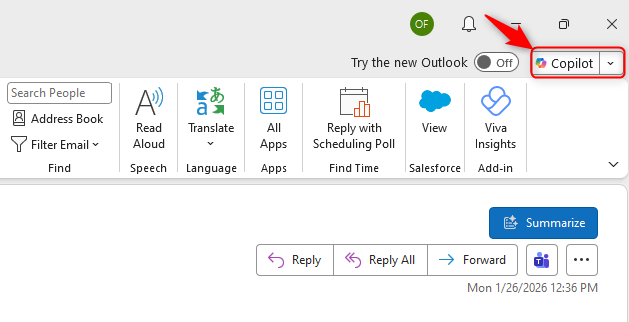 | Helps with composing email |
| Microsoft Teams | 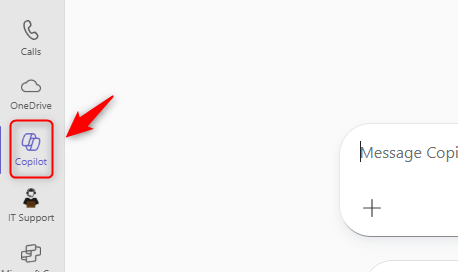 | Used to summarize conversations and meetings |
| Microsoft WORD | 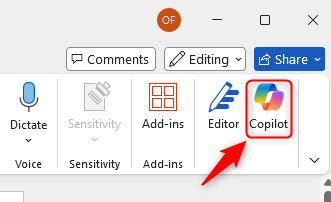 | Helps in drafting or rewriting content |
What should I NOT use Co-Pilot for?
To help keep everyone safe, please remember the following:
Do not enter confidential or sensitive information that you would not normally include in emails or documents.
Do not use Copilot for personal matters.
Do not rely on Copilot to make final decisions without reviewing its output.
Always review and verify anything Copilot creates before sharing it.
Need help ?
If you have any questions or need assistance using Microsoft Copilot, please contact the IT team at Itsupport@cadorath.com. We’re happy to help.
Oluwafemi is the author of this solution article.
Did you find it helpful?
Yes
No
Send feedback Sorry we couldn't be helpful. Help us improve this article with your feedback.
