
This Article is for all users with 3CX extensions. Here are a few best practices and reminders to help ensure a smooth calling experience.
Additional guides and demo videos can be found towards the bottom of this article.
For All Users:
- Check your status: calls only ring if your status is Available. (DND, Away, Busy etc will send the call to your voicemail)
- Calls routed to you come through Reception: any calls coming to you have been filtered through reception and so are unlikely to be spam. If you are being called through 3CX, it is likely a customer or work related.
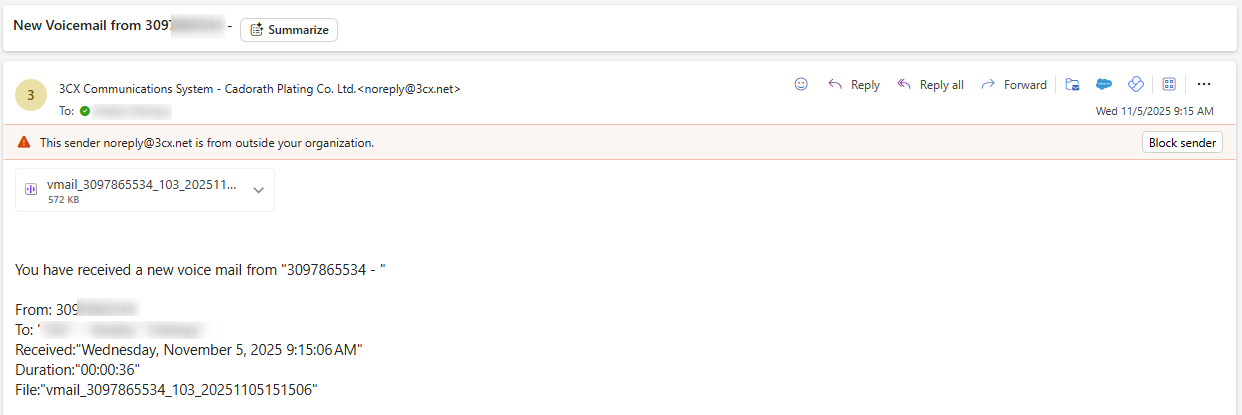
- Voicemail: If a voicemail is left for you, it will be sent to your email as an attachment from 3CX communication system
- Example Screenshot:
For 3CX Windows App users:
- Default Settings: for the majority of users, default settings are fine and do not need to be adjusted. If you are new to 3CX, please try a test call with someone in your area to confirm your audio settings are correct.
- Multiple audio devices: for those with multiple devices (webcam, headset, computer speaker, etc) some settings may need to be adjusted to ensure audio is coming through the preferred device.
- Audio Settings: If you would like to adjust audio settings to change where you hear the ringer, your default devices, or increase your mic sensitivity, please try the steps in the Common Audio Settings guide.
For 3CX Phone Apps users:
- Enable Notifications: if you do not get a notification of a call, please check your phone settings to make sure notifications and volume is enabled for 3CX.
- Open app at least once a week: Please open the 3CX app on your phone at least once a week to ensure you get calls and notifications as expected. Cellphones may see the app as not in use and pause it in the background if it is not used for a week which could result in calls not ringing as expected. Opening or using the app once a week refreshes this time ensuring calls ring on your phone.
Resources:
- 3CX Demo Video: The linked video provides an overview of the 3CX desk phone, web app, and desktop app. Since most users will be using the desktop app, the link below jumps directly to the relevant section (6:09): 3CX Demo Video
- Cellphone Sign In Guide (for those who use 3CX on their cellphones) https://cadorathgroup.freshdesk.com/a/solutions/articles/70000675887
- Common Audio Settings: https://cadorathgroup.freshdesk.com/a/solutions/articles/70000679570
NOTE: If you have any questions, concerns, or run into any issues please reach out to itsupport@cadorath.com and we'd be happy to assist directly.