
Use official Bitwarden clients, then point them at the Cadorath server (not the public Bitwarden cloud).
Server URL (self-host): https://apps.cadorath.com/passwords
1. Prompt from the web vault
After signup (or from Get the apps), the vault may ask you to install the browser extension. You can install now or Add later.
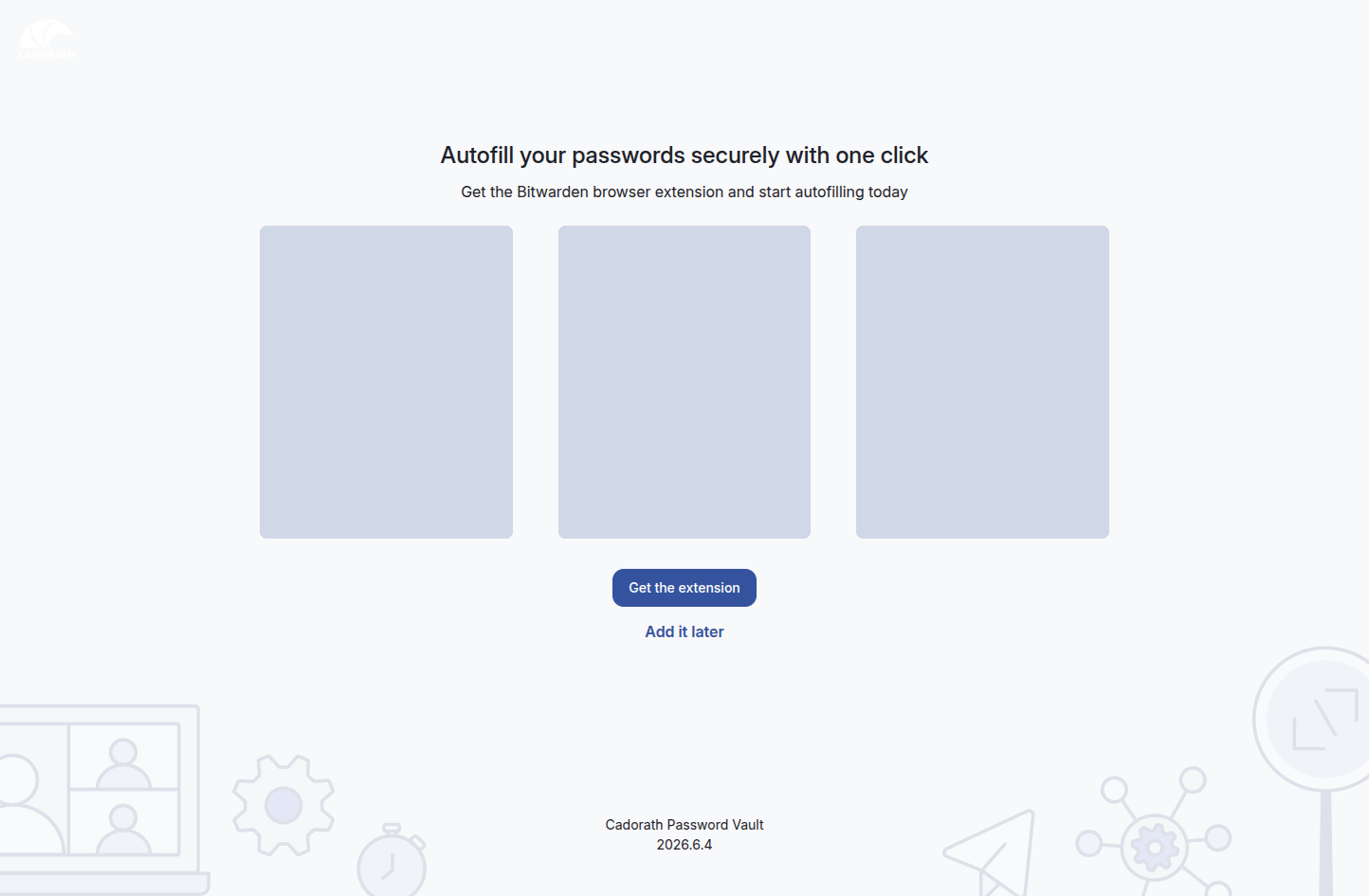
Setup extension prompt
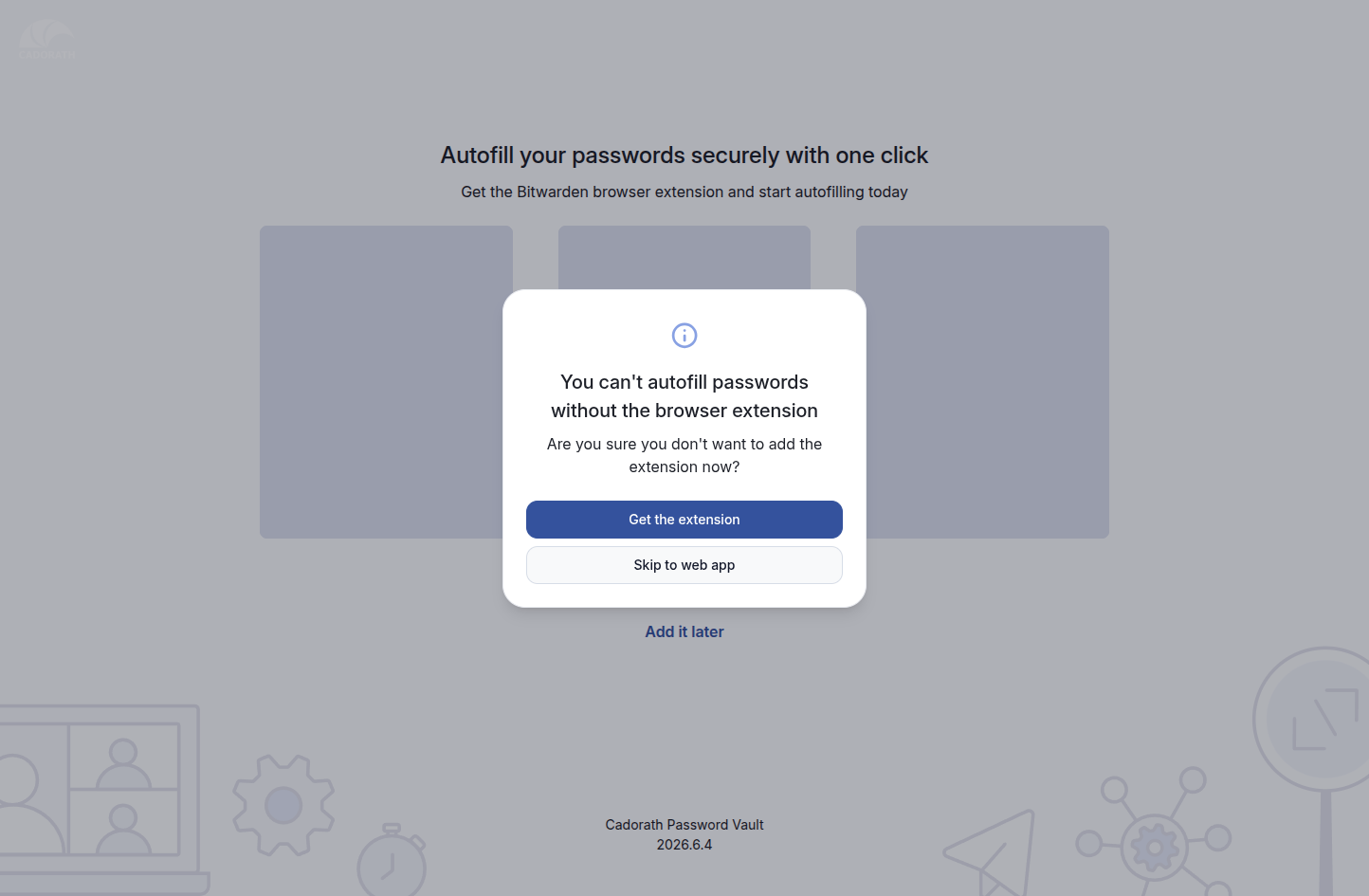
Add later confirm
2. Browser extension (Chrome example)
- Open the Bitwarden Password Manager listing on the Chrome Web Store (publisher: Bitwarden Inc.).
- Click Add to Chrome (or your browser’s equivalent).
- Pin the extension for easy access.
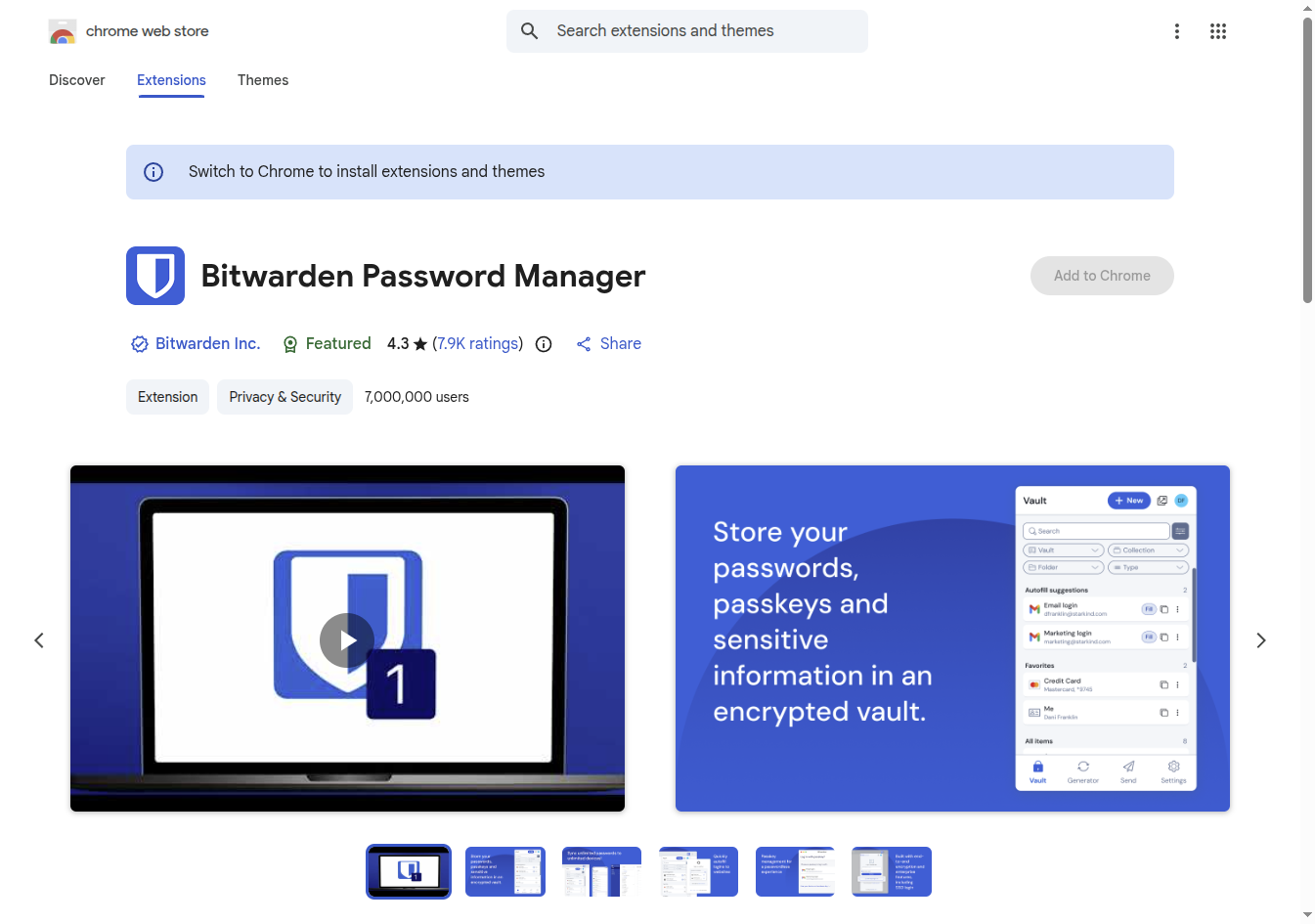
Chrome Web Store
Other browsers: use the matching store link from the downloads page (Edge, Firefox, Safari, etc.).
3. Desktop and mobile apps
Download clients from the official Bitwarden downloads hub:
https://bitwarden.com/download/
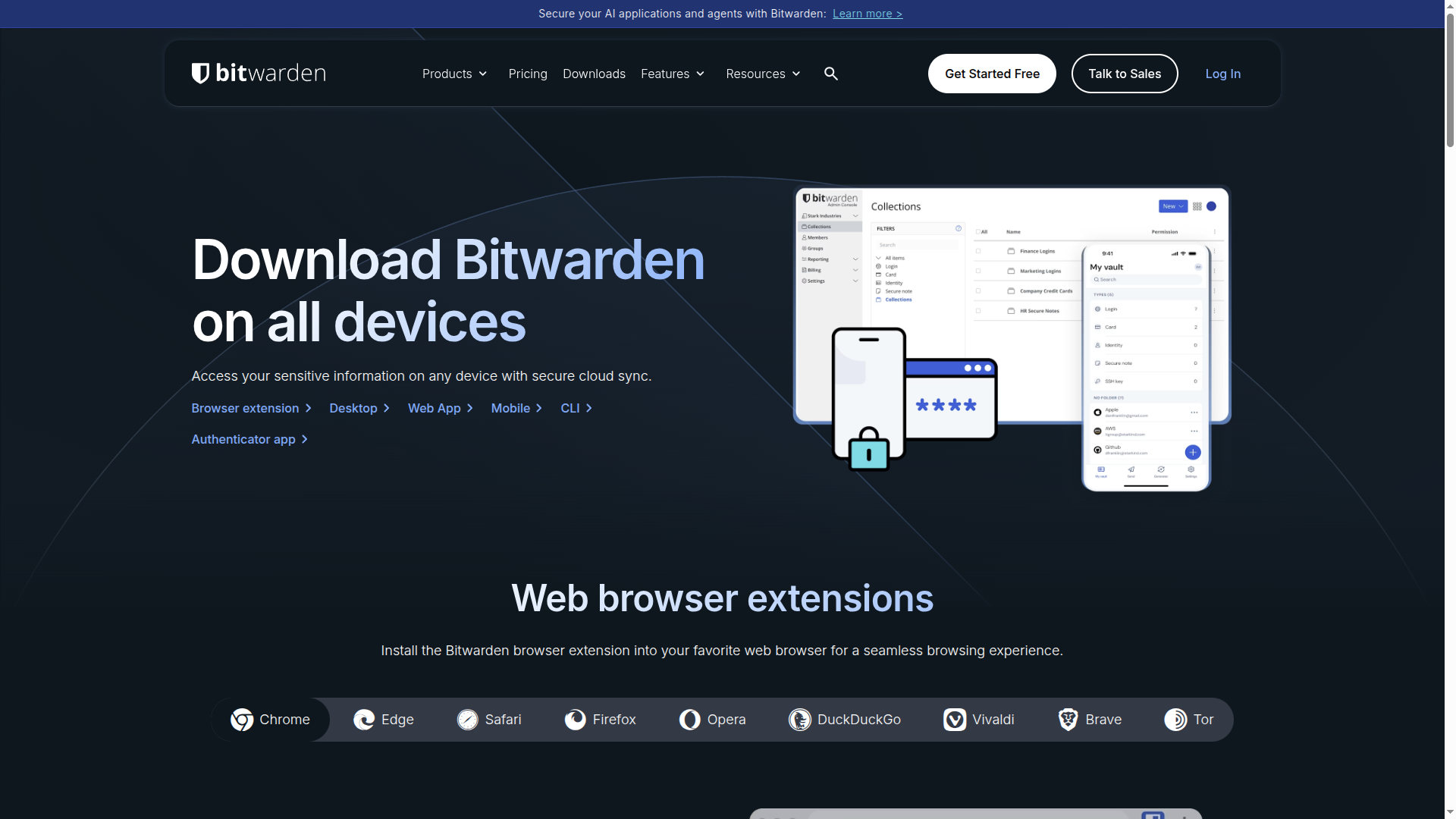
Bitwarden downloads
Install the app for your OS or phone (App Store / Google Play).
4. Point the client at Cadorath
Do this on every new app or extension before logging in.
- Open the Bitwarden extension or app.
- On the login screen, open Settings / region / self-host options (wording varies by client).
- Choose Self-hosted (or custom environment).
- Set the server URL to:
https://apps.cadorath.com/passwords
- Save, then log in with your Cadorath vault email and master password.