
Bring existing passwords into your Cadorath vault from a browser or another password manager.
1. Open Tools → Import
In the sidebar: Tools → Import.
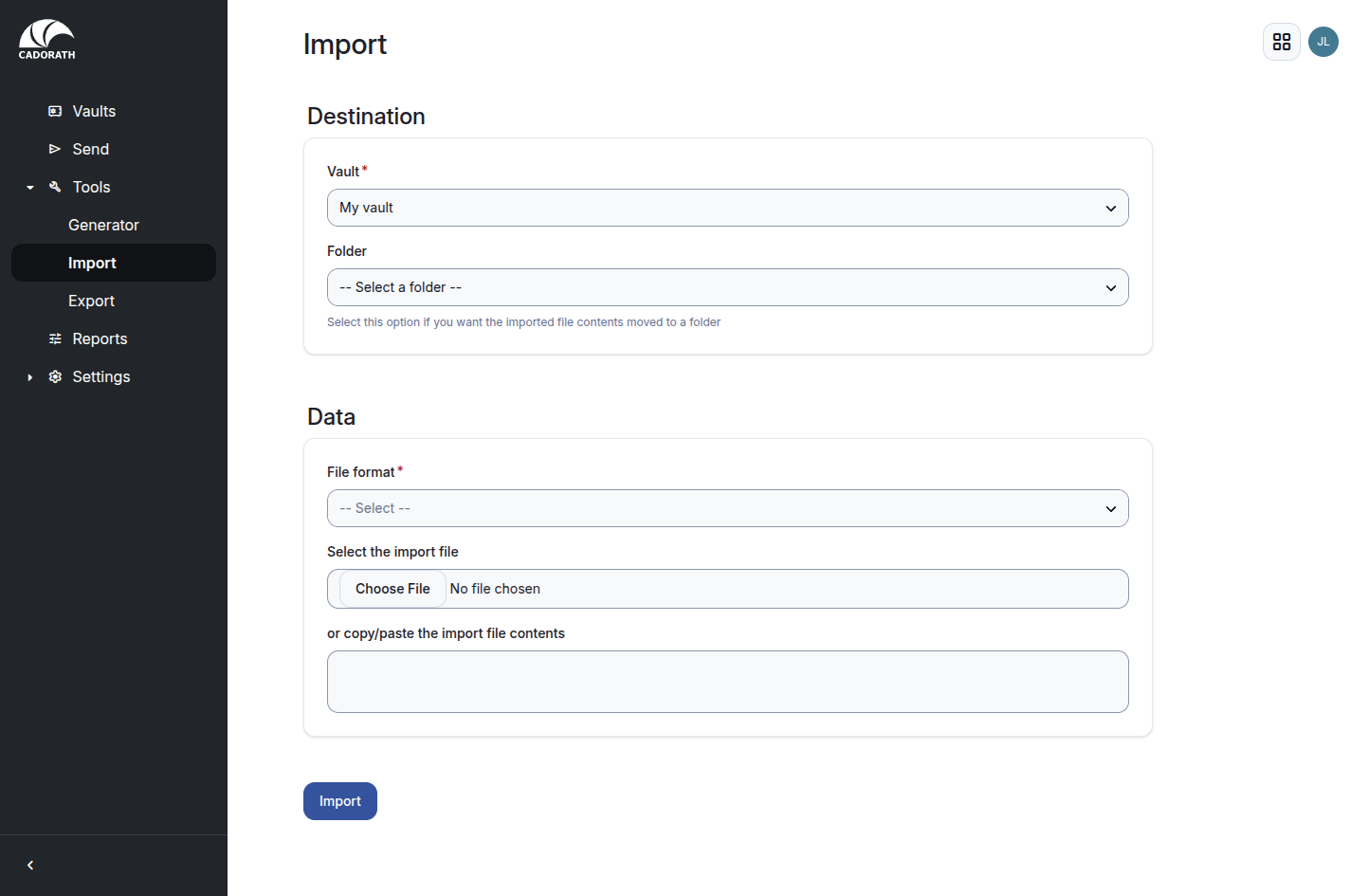
Import page
First-load tours may also point here:
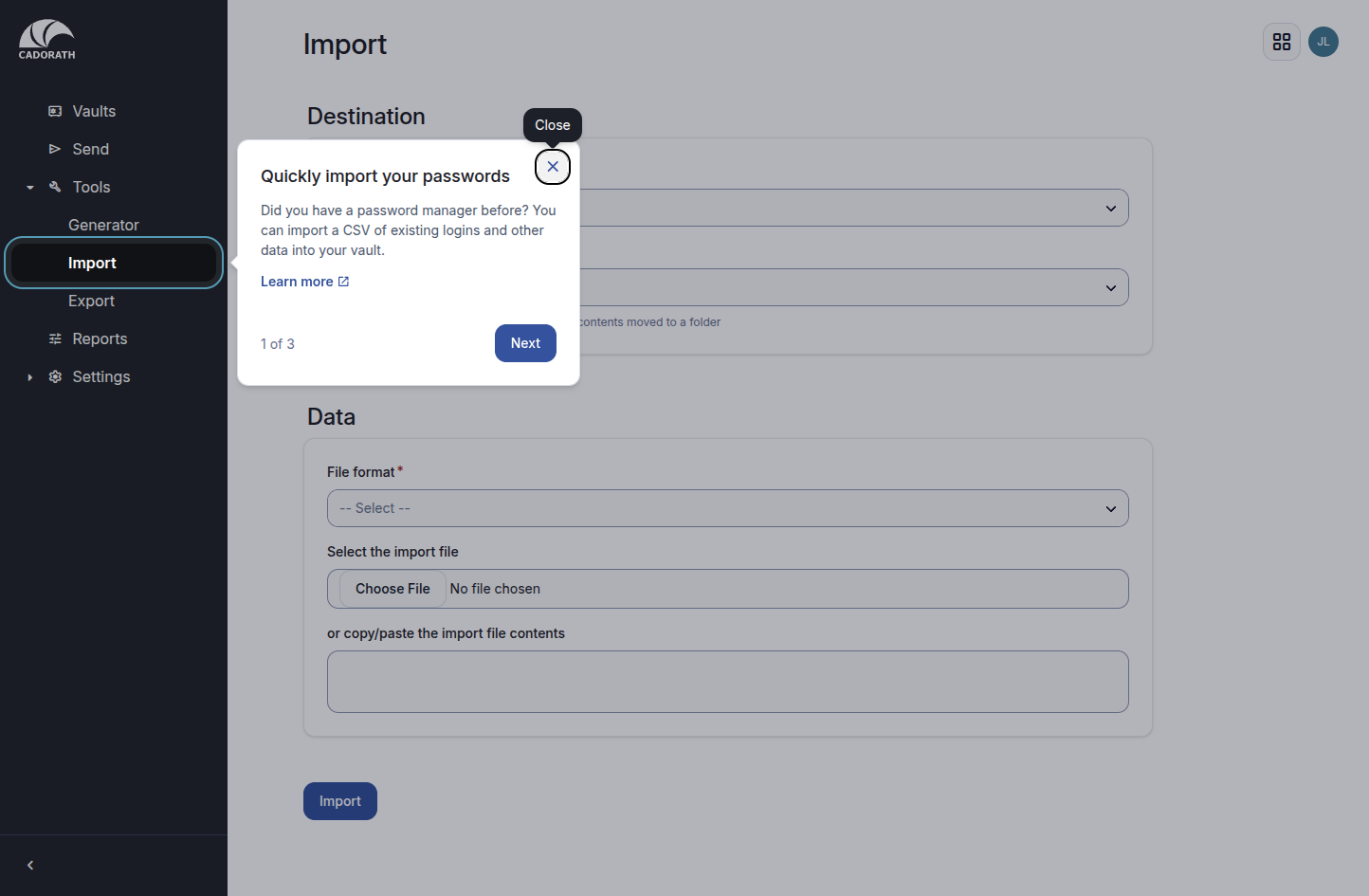
Import during tour
2. Choose destination
- Vault — usually My vault (personal).
- Folder — optional; leave blank or pick a folder for the imported items.
3. Choose file format
Open File format and pick the source that matches your export (examples: Chrome, Bitwarden (json), LastPass, 1Password, Firefox (csv)).
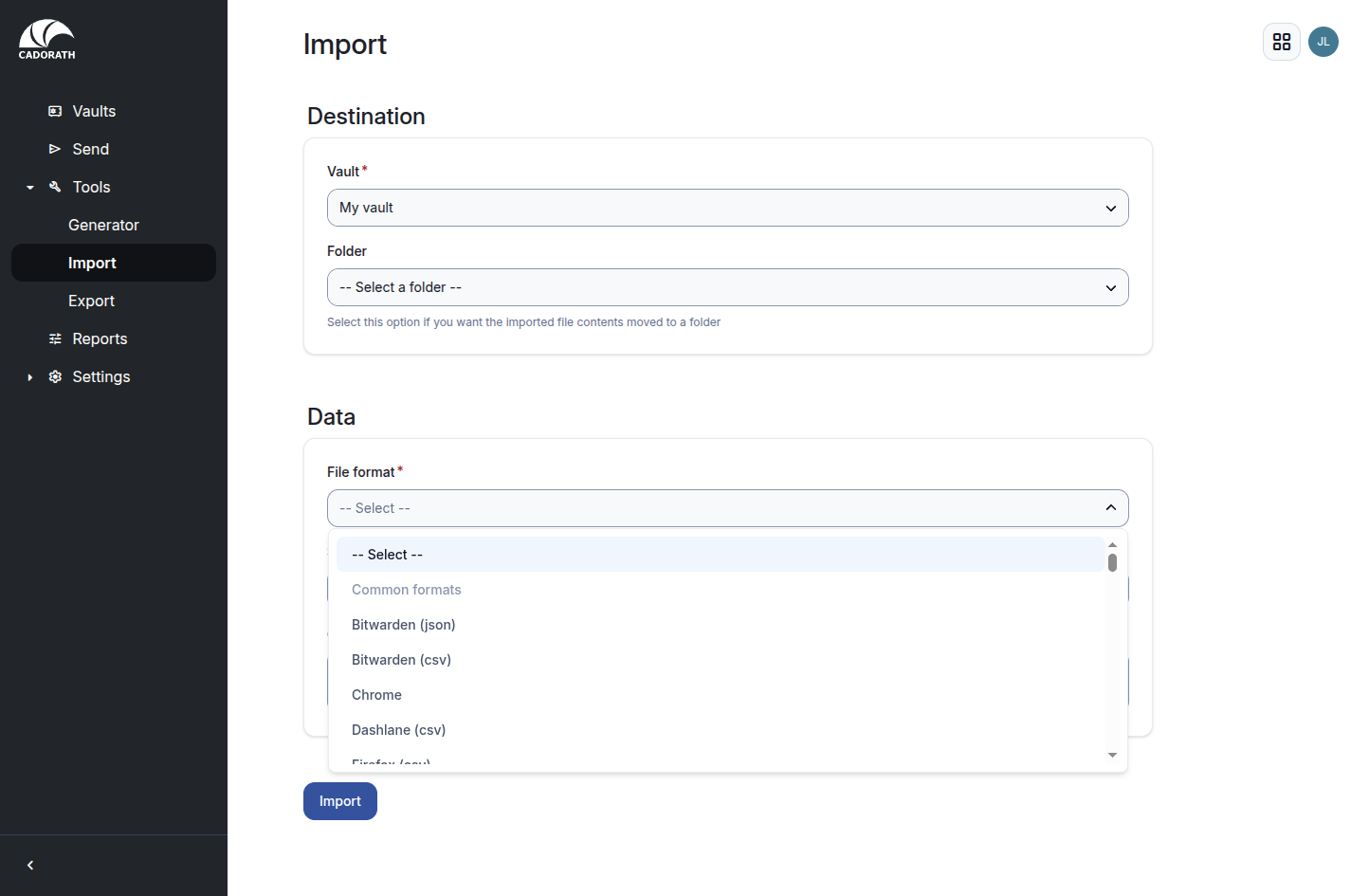
File format options
Export instructions differ by product. Typical pattern:
- In the old manager/browser, export passwords to a file.
- Keep the file private (local disk only; do not email it).
- In Cadorath vault Import, select matching format and Choose File (or paste contents).
- Click Import.
4. After import
- Spot-check a few logins in Vaults.
- Securely delete the export file from your computer (and recycle bin).
- Disable or remove the old password manager once you trust the new vault.
If import fails, confirm format matches the file, or try another export type from the same source.